
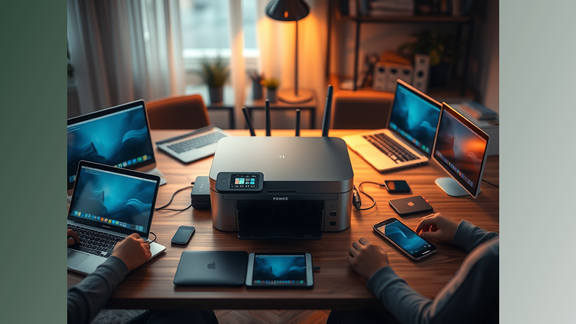
Share Printer Across Multiple Devices

Whether you’re running a small online business or managing school requirements for multiple kids, a shared printer setup can supercharge efficiency at home. This guide to share printer goes beyond basic Windows sharing to explore advanced tips for seamless, secure, and smart printing.
Hardware & Network Requirements
What are the hardware and network requirements to share a local printer?
- Printer with USB or wireless capabilities
- Primary PC or router-based print server
- Reliable home Wi-Fi with stable IP addresses
- Devices running Windows, macOS, or Android/iOS
Option 1: Advanced Windows Printer Sharing (with Static IP Setup)
Assign a Static IP to the Host Computer
- Go to Control Panel > Network and Sharing Center > Change Adapter Settings
- Right-click your connection → Properties > IPv4 Settings
- Assign a static IP (e.g., 192.168.1.50) to avoid losing the printer path
Enable and Customize Printer Sharing
- Go to Control Panel > Devices and Printers
- Right-click your printer → Printer Properties > Sharing tab
- Share the printer as HomePrinter, enable additional driver support for other OS types
Install on Other Devices via Static Path
- In Windows: \192.168.1.50\HomePrinter
- On macOS: Use System Preferences > Printers > IP Printer, enter IP and queue name
Option 2: Router-Level Print Server (for Networked Printers)
If your router supports USB print server functions:
- Plug the printer into your router’s USB port
- Access your router’s admin panel (e.g., 192.168.1.1) → Enable the print server feature
- On client devices, add printer using IP address (e.g., 192.168.1.1:631)
This setup allows any connected device in your home to use the printer even if the main PC is off—perfect for 24/7 business operations.
Securing Your Network Printing
- Disable guest access or unknown user connections
- Use firewalls to restrict printer IP to known devices only
- Monitor access logs if supported by your router or Windows Event Viewer
Bonus: Mobile Printing for Android/iOS
- Install OEM apps like Canon PRINT, Epson iPrint, or HP Smart
- Connect via Wi-Fi Direct if router access isn’t stable
- Use Google Cloud Print alternatives (e.g., Mopria, AirPrint) depending on your device
Why This Upgrade Matters
- No more re-plugging or booting up the “host PC” every time
- Faster workflows for home-based businesses
- Support for blended-device environments (PCs, tablets, phones)
- Better control and data privacy in shared spaces.
Comments