
Convert Peso Number into words in Excel

In this post, I will show you how to convert a peso number into words in Microsoft Excel. It is very useful when using a Microsoft Excel workbook template to print checks. We will guide you on how to use the SpellNumber function formula in Microsoft Excel. Thus, any amount in Peso currency allows you to convert into English words.
To convert a Dollar amount into words, please visit this article from Microsoft, click here.
What is SpellNumber formula in Excel?
SpellNumber function is a formula used to convert numbers into English words in Microsoft Excel. To add this capability, you need to paste the SpellNumber function code into a VBA (Visual Basic for Applications) module and save as Excel Macro Enabled Workbook.
Here is the guide on how to create the SpellNumber function.
Creating SpellNumber function
STEP 1. Open your Microsoft Excel Workbook. In a blank cell, type the peso amount or number you want to convert. Later you have to type in a blank cell the formula =SpellNumber(D8) to get result. Where D8 is the cell location of peso number.
As sample above I have provide P150.45 then it must be turned into One Hundred Fifty Pesos & 45/100 by using the formula =SpellNumber.
STEP 2. Press Alt + F11 key, it will open the visual basic window. Click Insert tab, then Module folder under VBA Project. Copy codes below, then Paste in the blank module.
SpellNumber VBA code in Excel
Highlight and Copy Codes below.
Option Explicit'Main FunctionFunction SpellNumber(ByVal MyNumber)Dim Pesos, Cents, TempDim DecimalPlace, CountReDim Place(9) As StringPlace(2) = " Thousand "Place(3) = " Million "Place(4) = " Billion "Place(5) = " Trillion "' String representation of amount.MyNumber = Trim(Str(MyNumber))' Position of decimal place 0 if none.DecimalPlace = InStr(MyNumber, ".")' Convert cents and set MyNumber to dollar amount.If DecimalPlace > 0 ThenCents = GetTens2(Left(Mid(MyNumber, DecimalPlace + 1) & _"00", 2))MyNumber = Trim(Left(MyNumber, DecimalPlace - 1))End IfCount = 1Do While MyNumber <> ""Temp = GetHundreds(Right(MyNumber, 3))If Temp <> "" Then Pesos = Temp & Place(Count) & PesosIf Len(MyNumber) > 3 ThenMyNumber = Left(MyNumber, Len(MyNumber) - 3)ElseMyNumber = ""End IfCount = Count + 1LoopSelect Case PesosCase ""Pesos = "No Pesos"Case "One"Pesos = "One Peso"Case ElsePesos = Pesos & ""End SelectSelect Case CentsCase ""Cents = " Pesos Only "Case "One"Cents = " and One Cent"Case ElseCents = " & " & Cents & "/100 Pesos Only"End SelectSpellNumber = Pesos & CentsEnd Function' Converts a number from 100-999 into textFunction GetHundreds(ByVal MyNumber)Dim Result As StringIf Val(MyNumber) = 0 Then Exit FunctionMyNumber = Right("000" & MyNumber, 3)' Convert the hundreds place.If Mid(MyNumber, 1, 1) <> "0" ThenResult = GetDigit(Mid(MyNumber, 1, 1)) & " Hundred "End If' Convert the tens and ones place.If Mid(MyNumber, 2, 1) <> "0" ThenResult = Result & GetTens(Mid(MyNumber, 2))ElseResult = Result & GetDigit(Mid(MyNumber, 3))End IfGetHundreds = ResultEnd Function' Converts a number from 10 to 99 into text.Function GetTens(TensText)Dim Result As StringResult = "" ' Null out the temporary function value.If Val(Left(TensText, 1)) = 1 Then ' If value between 10-19...Select Case Val(TensText)Case 10: Result = "Ten"Case 11: Result = "Eleven"Case 12: Result = "Twelve"Case 13: Result = "Thirteen"Case 14: Result = "Fourteen"Case 15: Result = "Fifteen"Case 16: Result = "Sixteen"Case 17: Result = "Seventeen"Case 18: Result = "Eighteen"Case 19: Result = "Nineteen"Case ElseEnd SelectElse ' If value between 20-99...Select Case Val(Left(TensText, 1))Case 2: Result = "Twenty "Case 3: Result = "Thirty "Case 4: Result = "Forty "Case 5: Result = "Fifty "Case 6: Result = "Sixty "Case 7: Result = "Seventy "Case 8: Result = "Eighty "Case 9: Result = "Ninety "Case ElseEnd SelectResult = Result & GetDigit _(Right(TensText, 1)) ' Retrieve ones place.End IfGetTens = ResultEnd Function' Converts a number from 1 to 9 into text.Function GetDigit(Digit)Select Case Val(Digit)Case 1: GetDigit = "One"Case 2: GetDigit = "Two"Case 3: GetDigit = "Three"Case 4: GetDigit = "Four"Case 5: GetDigit = "Five"Case 6: GetDigit = "Six"Case 7: GetDigit = "Seven"Case 8: GetDigit = "Eight"Case 9: GetDigit = "Nine"Case Else: GetDigit = ""End SelectEnd Function' Converts a number from 10 to 99 into text.Function GetTens2(TensText)Dim Result As StringResult = "" ' Null out the temporary function value.If Val(Left(TensText, 1)) = 1 Then ' If value between 10-19...Select Case Val(TensText)Case 10: Result = "10"Case 11: Result = "11"Case 12: Result = "12"Case 13: Result = "13"Case 14: Result = "14"Case 15: Result = "15"Case 16: Result = "16"Case 17: Result = "17"Case 18: Result = "18"Case 19: Result = "19"Case ElseEnd SelectElse ' If value between 20-99...Select Case Val(Left(TensText, 1))Case 2: Result = "2"Case 3: Result = "3"Case 4: Result = "4"Case 5: Result = "5"Case 6: Result = "6"Case 7: Result = "7"Case 8: Result = "8"Case 9: Result = "9"Case ElseEnd SelectResult = Result & GetDigit2 _(Right(TensText, 1)) ' Retrieve ones place.End IfGetTens2 = ResultEnd Function' Converts a number from 1 to 9 into text.Function GetDigit2(Digit)Select Case Val(Digit)Case 0: GetDigit2 = "0"Case 1: GetDigit2 = "1"Case 2: GetDigit2 = "2"Case 3: GetDigit2 = "3"Case 4: GetDigit2 = "4"Case 5: GetDigit2 = "5"Case 6: GetDigit2 = "6"Case 7: GetDigit2 = "7"Case 8: GetDigit2 = "8"Case 9: GetDigit2 = "9"Case Else: GetDigit2 = ""End SelectEnd Function
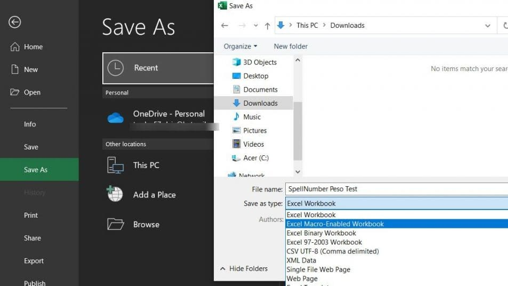
STEP 3. Press Alt + Q to close, then save your document as Excel Macro Enabled Workbook.
STEP 4. Open your Microsoft Excel workbook again. Try using the formula =SpellNumber(Cell Reference) and press enter. For Example, =SpellNumber(D8) where D8 is the cell containing the number you want to convert. You can also type the number manually, like =SpellNumber(150.45). It should convert the Peso number to English words.
This guide was made using Microsoft Excel 2019 version.
That’s it, you’re done. If you have a question on how to convert peso numbers into words in Excel, please leave a comment below.
Comments